We are working in a multilingual project which have couple of websites hosting certain languages, not all website support same languages, for ex. website one supports English and French whereas second website supports English UK (en-GB) and German.
The easiest way in our project to create new website is by cloning the existing website. If I didn’t mention it already then we are on Sitecore 10 with SXA setup. So whenever there is a request of new website, we clone the existing one and then start configuring it.
The main challenge in this setup is cleaning up languages and adding a new language versions for the all the items within the new site. For ex, the website we cloned from has English and French & in the new website we need en-GB and German then we have to copy everything from English (en) to en-GB & de-DE (everything means content + layout details).
Once we copy everything to en-GB & de-DE, we also need to delete the en & fr-FR versions of the each item, to do these things manually, it is time consuming as well as it can introduce human error.
So we will need 2 SPE scripts one for copying and one for deleting, and once these scripts are created, we will need to add it to context Menu for easy use.
Let’s see how we can do so:
We can technically create our own folder for the scripts under the Script Library so that it won’t be overwritten in Sitecore upgrade, you can read it in detail from the reference link.
In this blog, we will just add the scripts under OOTB path so that it will be directly visible in Context Menus. (/sitecore/system/Modules/PowerShell/Script Library/SPE/Tools/Authoring Instrumentation/Content Editor/Context Menu)
The scripts can be format based on your requirements:
Links:
Doc – https://doc.sitecorepowershell.com/working-with-items/item-languages
Blog – https://ghanendras.blogspot.com/2020/08/sitecore-powershell-script-to-create.html
Once you are ready with your script, you can duplicate the “Author Statistics” item and name it as Copy Languages, also update the display for the same.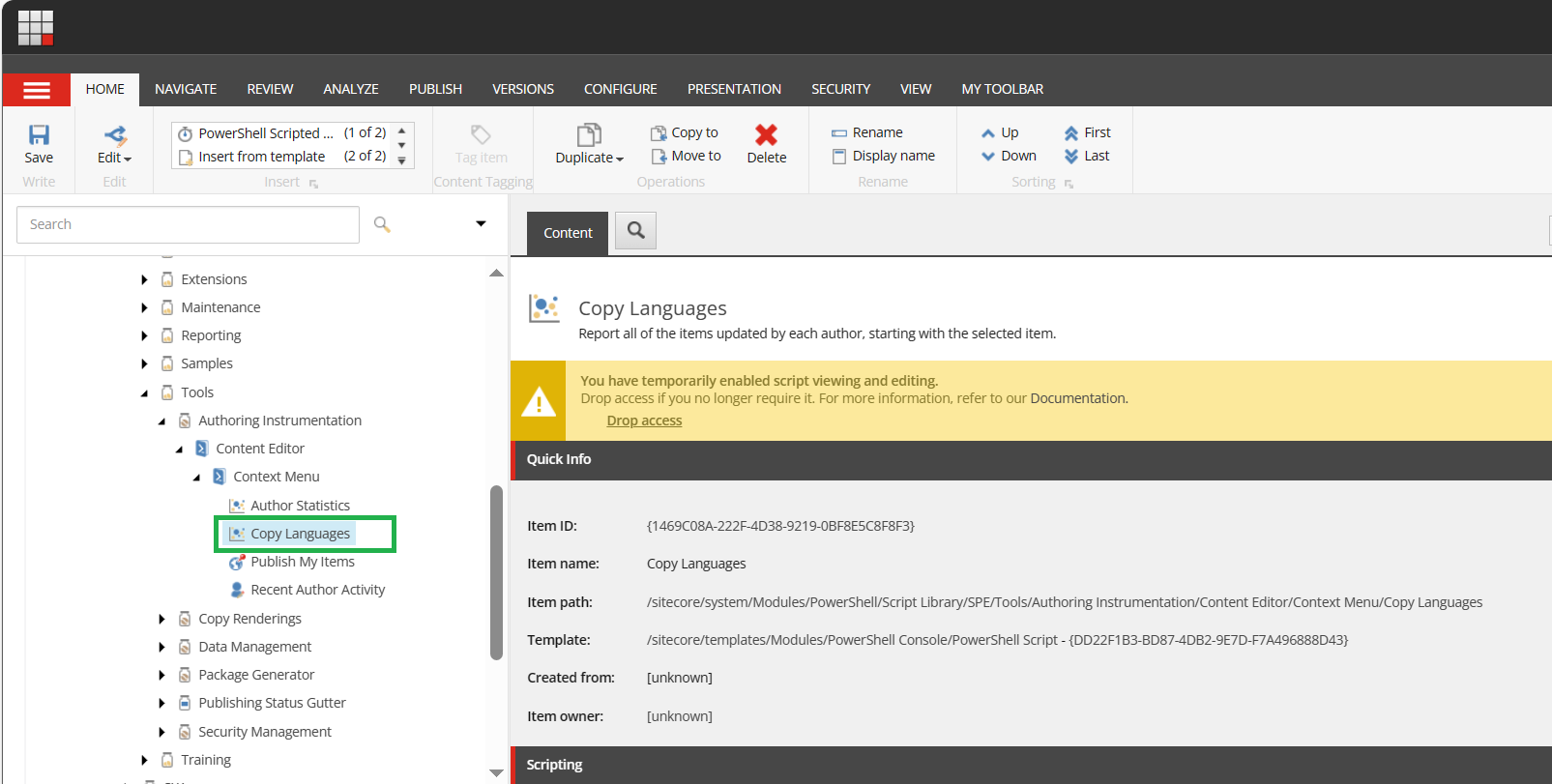
Now copy your script into the “Script Body” field so that you will be able to execute the script through context menu.
Save the changes and drop the access.
Now go to the any item where you want to copy the new language, right click > Scripts > Copy Languages.
The dialog will appear where you can choose the source language, destination language and whether you need sub child or not.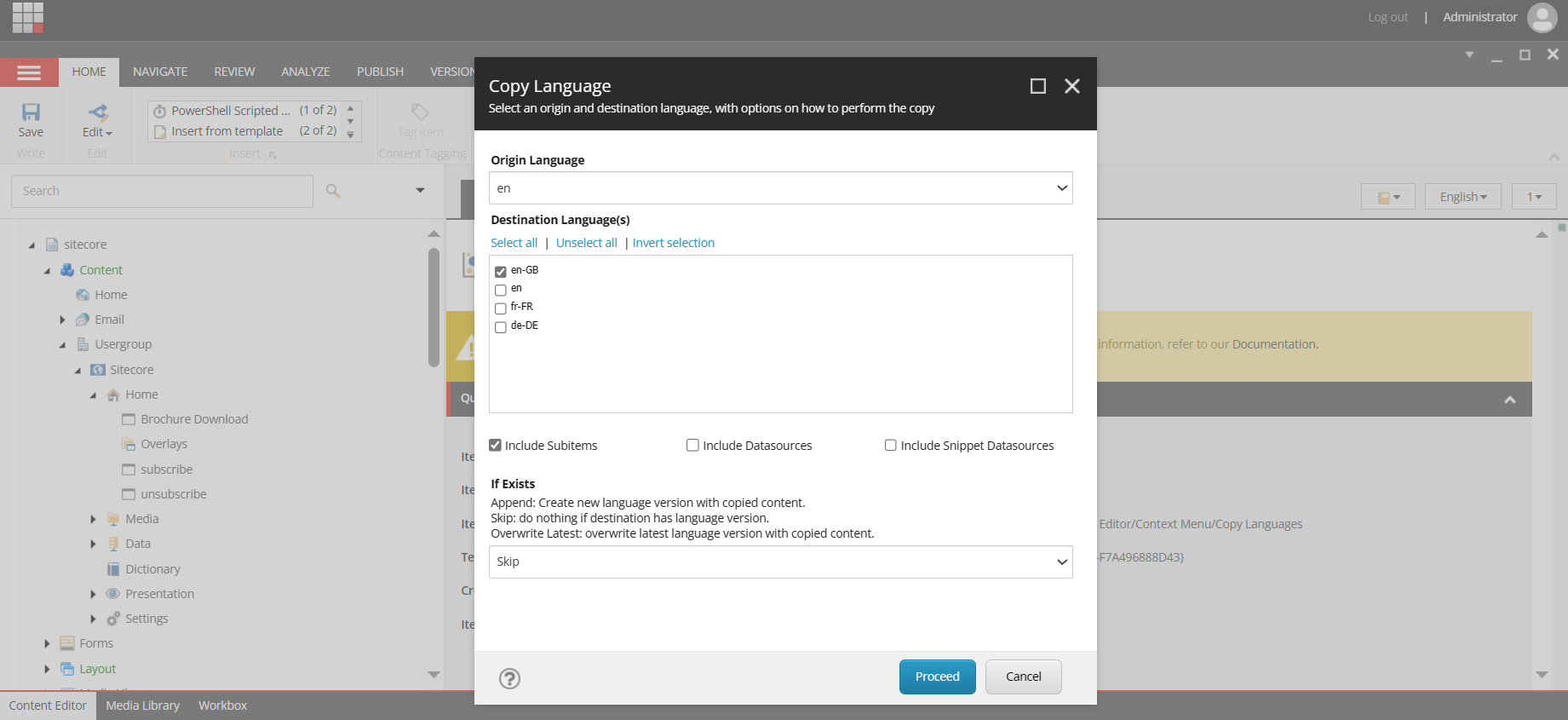
Similarly. duplicate the Copy Languages item and name it Delete Languages and update the script. And it will appear in the Context Menus.
Reference Link: https://blogs.perficient.com/2022/09/30/add-powershell-script-to-the-context-menu-in-sitecore-sxa/
Hope this was helpful!
Thank you.. Keep Learning.. Keep Sitecoring.. 🙂

