Sitecore Experience Accelerator (SXA) is a powerful tool that empowers developers and marketers to create and manage websites with ease. Whether you’re new to Sitecore or an experienced developer, this blog will help you through the essential steps to kickstart your journey into Sitecore SXA development.
1. Understanding Sitecore SXA
SXA is a feature-rich framework that streamlines website development. Web development teams use SXA to speed up the production of websites and to reuse components, layouts, and templates across a variety of sites. SXA emphasizes modular development, allowing you to focus on creating engaging user experiences without getting down into a complex coding.
2. Set Up Your Development Environment
Before we begin, ensure that you have the necessary tools and environments in place:
- Sitecore Instance: Install a Sitecore instance that supports SXA.
- Visual Studio: Use Visual Studio as your development environment.
- Sitecore CLI: Consider installing the Sitecore CLI to streamline deployment tasks.
3. Create a New SXA Site
Start by creating a new SXA site within your Sitecore instance:
- Launch Sitecore Desktop: Log in to the Sitecore Desktop.
- Access SXA Section: Navigate to the “SXA” section and click on “Sites.”
- Create a New Site: Click “Create” and follow the prompts to set up your new SXA site. Specify the name, host name, and other settings.

4. Explore SXA Toolbox
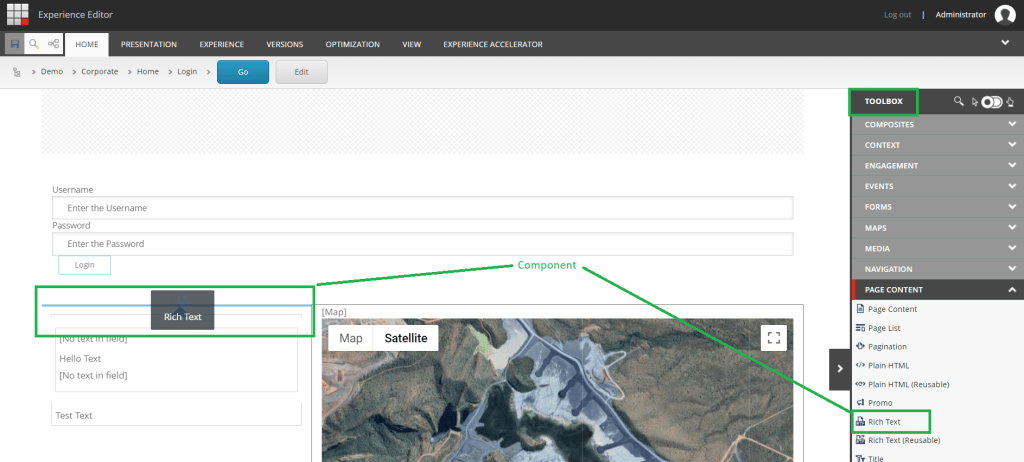
SXA toolbox is your go-to for adding components in Experience Editor. Here’s how to use it:
- Access Toolbox: In the Sitecore Experience Editor, open the “View” tab and click “Toolbox.”
- Add Components: Drag and drop components such as headers, footers, carousels, and more on the your page.
- Configure Components: Customize component properties through the “Variant Properties” dialog.
5. Work with Rendering Variants
Rendering Variants are essential for defining how components will be displayed. Here’s how to use them:
- Create a Rendering Variant: In the “Presentation” section of your component, add a new “Rendering Variant.”
- Edit Variant Design: Modify the variant’s HTML structure, CSS, and other properties to tailor its appearance.

6. Leverage Page Designs and Layouts
Page Designs and Layouts help structure your site’s pages consistently:
- Create a Page Design: Define a page structure by arranging placeholders and components.
- Apply a Layout: Associate your Page Design with a Layout that controls the overall page structure.

7. Customize with Themes
Themes allow you to apply consistent styling across the site:
- Access Themes: In the “SXA” section, navigate to “Themes.”
- Create a Theme: Add a new theme and customize it with CSS and assets.

8. Preview and Publish
Before going live, use the Preview mode to review your changes. Whenever you are ready, publish the site to make it available to the audience.

Hope this helps in your SXA journey!
Thank you.. Keep Learning.. Keep Sitecoring.. 🙂
 Sitecore Diaries